NOTE: The Summit Broadband Whole Home DVR powered by TiVo is not available in all markets. This content only applies to accounts in communities where this service is available.
OnePass™ Searches
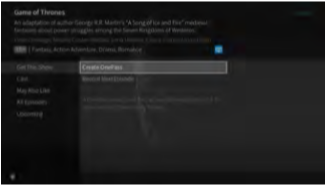
A OnePass search gathers every available episode of a series (whether streaming, on demand, or broadcast TV), every game or match from a specific team, or every sporting event in a league and adds them right to your My Shows list to watch instantly.
Forget about knowing when a show will be airing or wondering which streaming video service has it available: the TiVo Service does it for you, so you can start watching right away! For a series, if an episode isn’t available on TV or VU-IT On Demand, OnePass fills in the gaps with episodes from popular streaming video providers like Netflix.
For sports, your OnePass search will find matches whether you search by full team or league name, location (e.g., Argentina, Brazil), nickname (e.g., Giants, Bears), or abbreviation (e.g., FIFA, NFL, NCAA, UCLA). And here’s even better news: streaming videos don’t take up any disk space! So when your OnePass includes streaming videos, you get more choices without having to worry about saving space for other recordings. To create a OnePass, find a series you want to watch, then choose Create a OnePass. The show will be instantly added to My Shows and all available episodes will be added.
NOTE: OnePass works best when your video app list is up to date, with as many apps as possible selected.
OnePass Options
When you create a OnePass, you can choose options that will give you exactly the results you want. You can also change the options of any existing OnePass by going to the OnePass Manager. See OnePass Manager for more information. Options include:
- Include Choose to include recordings, streaming videos (from sources like Netflix), or both in your OnePass results. Including streaming videos in your OnePass will give you the best results, and streaming videos don’t take up any disk space!
- Start from Want to watch from the beginning? Choose Season 1. Just need to catch up? Choose a different season. Only want new episodes? Choose New Episodes Only.
- Rent or buy: Decide whether to include episodes that need to be purchased before viewing. (The TiVo Service will not purchase the items for you; you will have the option to purchase them at the time of viewing.)
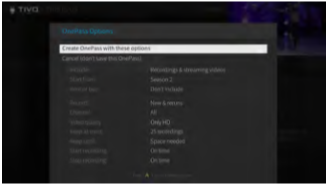
If your OnePass includes recordings, the following options are also available:
- Record: Skip reruns or watch them all? Choose New only to avoid reruns, or New & repeats to get every episode.
- Channel Choose the channel on which to record the show, when more than one channel is available.
- Video Quality: When you set the Channel setting (above) to All, you can choose how often to get the HD version of a show: always, never, or if possible. Note that if you choose Only HD and a show is not available in HD, it won’t be recorded. Likewise, if you choose Only SD and a show is only available in HD, it won’t be recorded.
- Keep At Most: Set the maximum number of recordings to be saved.
- Keep Until: Choose how long to keep a recording (or each episode of a repeating recording). Space needed is the default setting, or choose Until I delete and your TiVo box wont delete this episode to record something new.
- Start Recording: Start recording up to ten minutes before a show is scheduled to begin. (This option is available only before recording starts.)
- Stop Recording: Some shows consistently run past their scheduled end times. Use the Stop Recording option to choose when the TiVo box stops recording: at the shows scheduled end time, a few minutes after its scheduled end time, or even hours after its scheduled end time. You can change this setting when you set up the recording, or while the recording is in progress.
You can cancel the recording of any individual episode in a OnePass search by highlighting the title in the To Do List and pressing the Clear button  . Delete the entire OnePass search or change its options using the OnePass Manager (see OnePass Manager).